How to Make Your First Modpack in Modrinth
A complete, screenshot-driven guide to creating your first Modrinth modpack, adding mods and shaders, and launching your custom Minecraft experience.
By Vanilama
Table of Contents
What is Modrinth?
Modrinth is a modern, open-source platform and desktop app designed for discovering, installing, and managing Minecraft mods, resource packs, data packs, and shaders. It's built to be fast, lightweight, and user-friendly with clear project pages, automatic dependency resolution, and seamless modpack management.
Unlike older mod launchers, Modrinth focuses on providing a clean, efficient experience with powerful search capabilities, automatic version matching, and one-click installations. Many mod creators now publish on both Modrinth and CurseForge, but we're using Modrinth for this guide because it's incredibly beginner-friendly and performs exceptionally well.
- Fully open-source app and APIs
- Automatic dependency installation with clear version compatibility indicators
- Native support for Fabric, Forge, and Quilt modloaders
- First-class modpack creation, export, and sharing features
- Clean, modern interface that's easy to navigate
Learn more at modrinth.com.
Step 1: Download & Install Modrinth
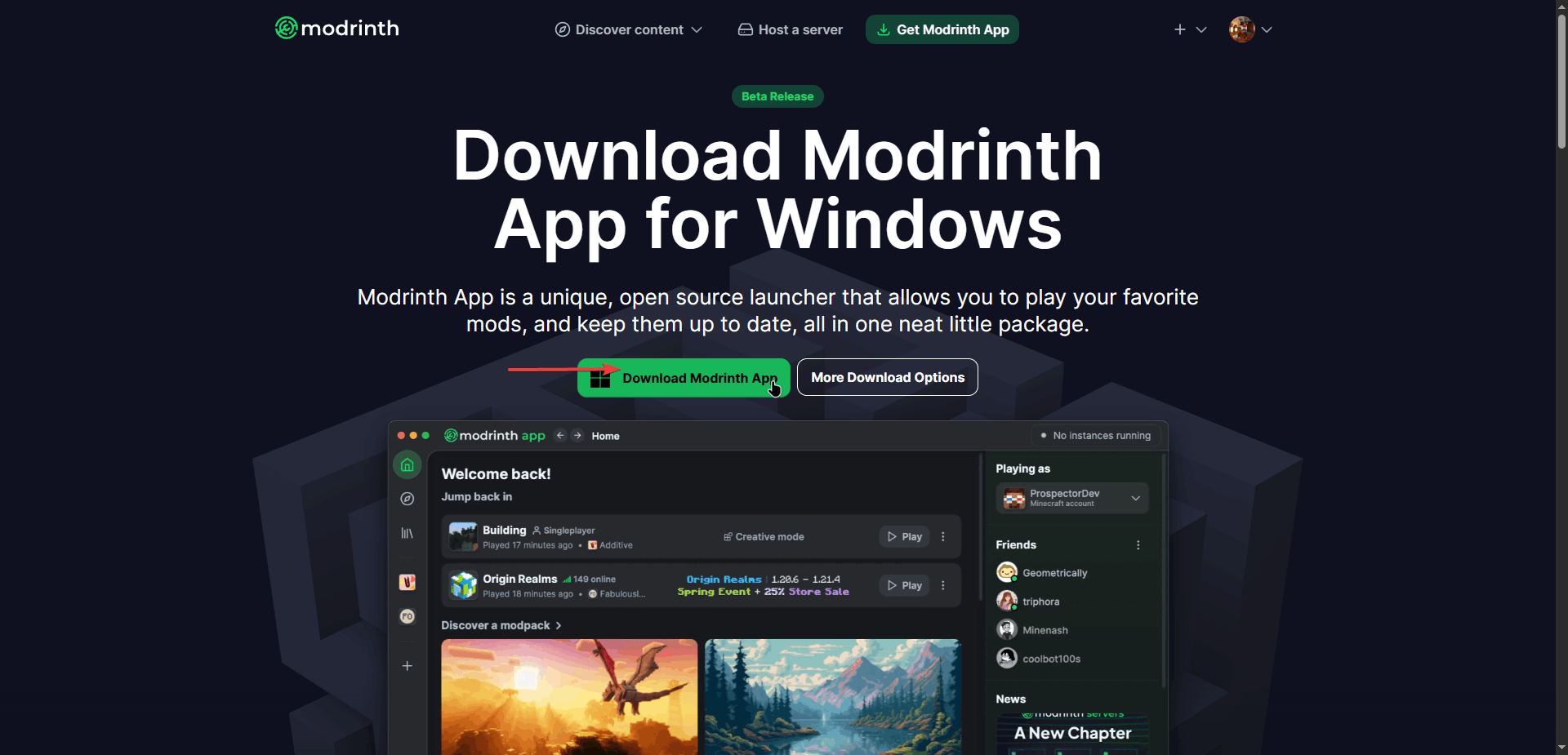
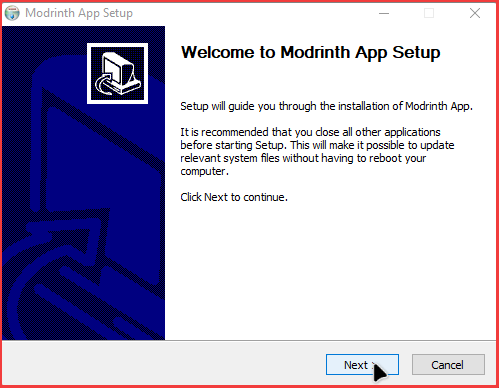
Head over to modrinth.com/app and download the Modrinth app for your operating system. Run the installer and follow the prompts. If Windows shows a security warning, click "More info" then "Run anyway". Stick with the default install location unless you have a specific reason to change it.
Step 2: Sign In to Your Account
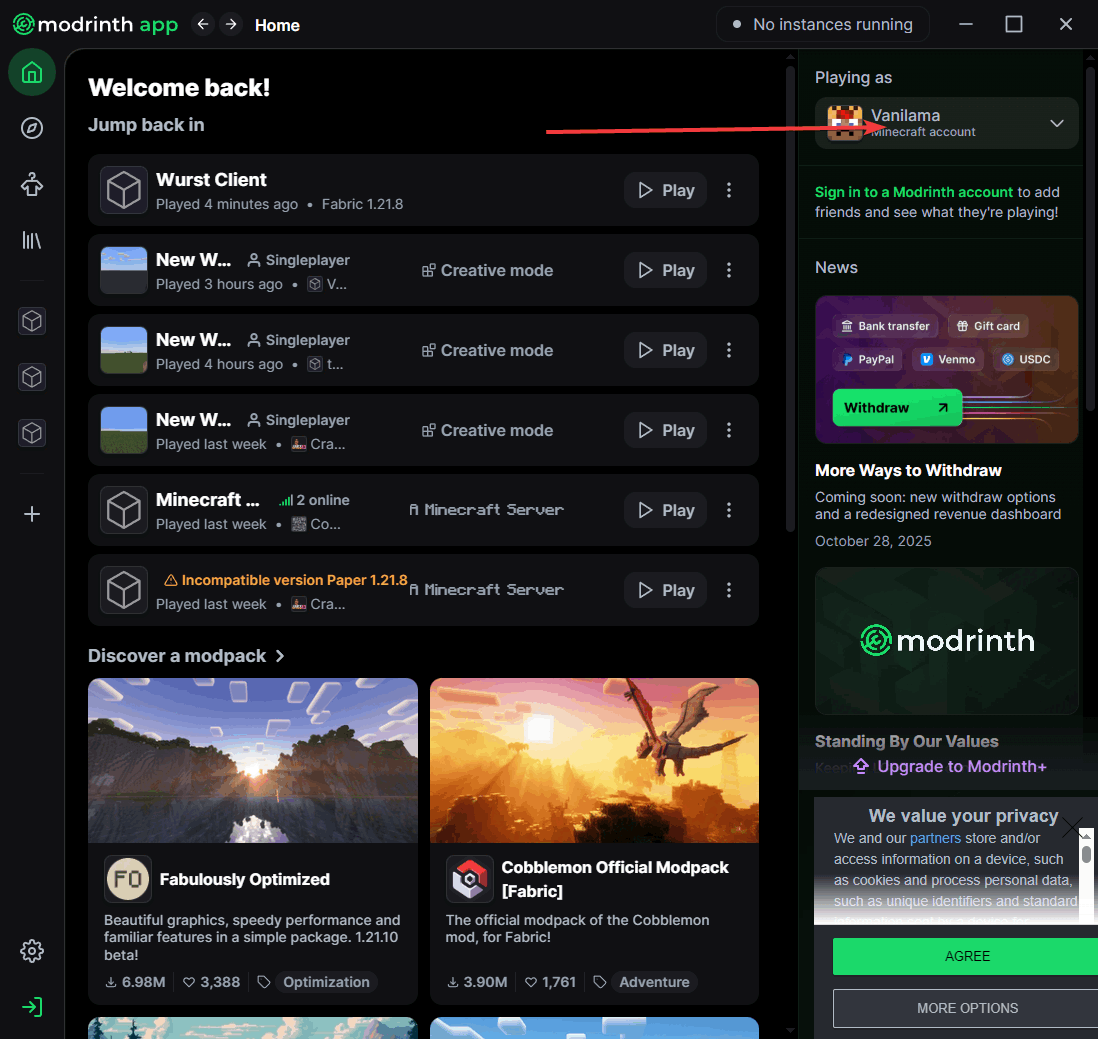
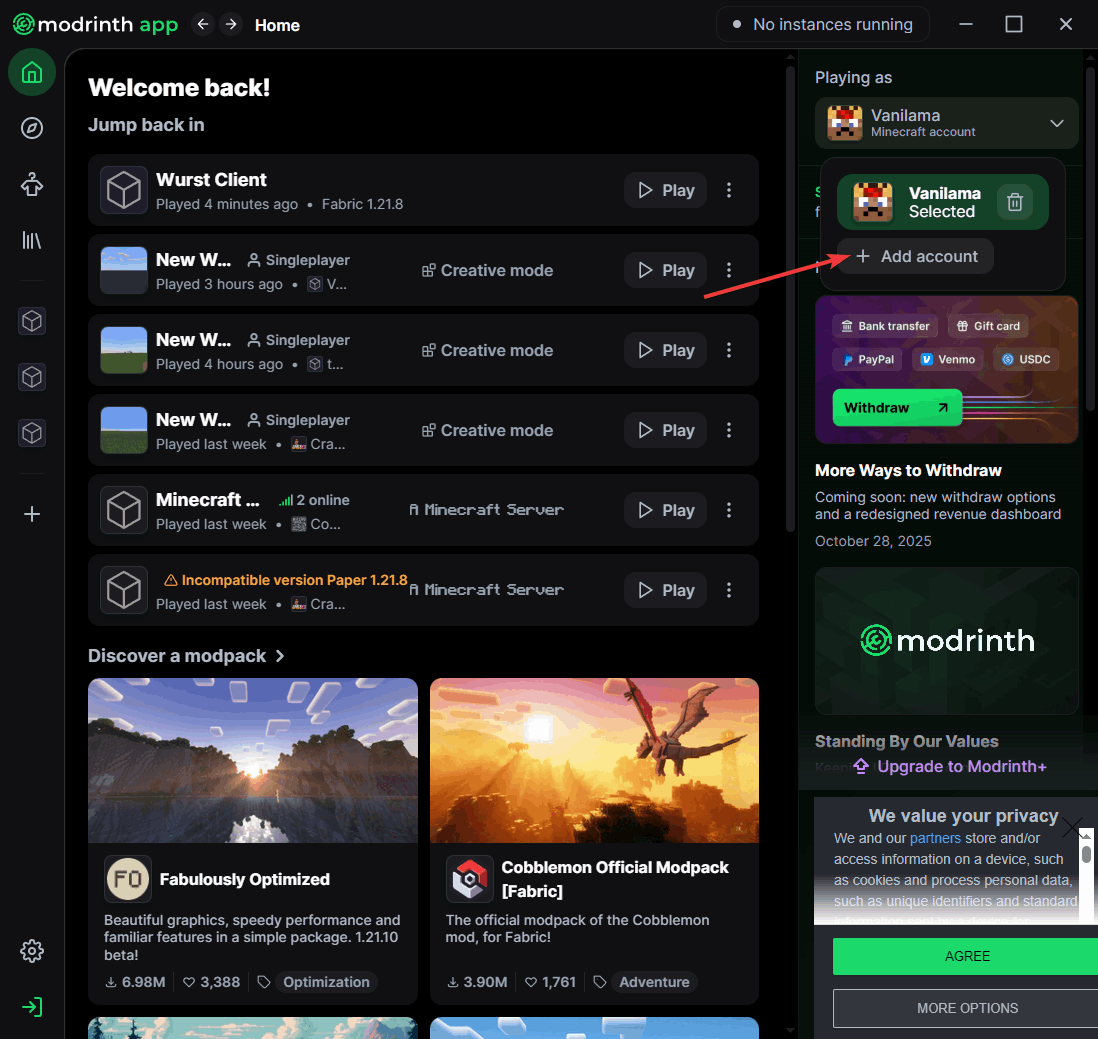
Launch the Modrinth app and sign in using your Microsoft/Minecraft account. If you manage multiple accounts, you can add them all and easily switch between them later in the settings menu.
Step 3: Create Your Modpack
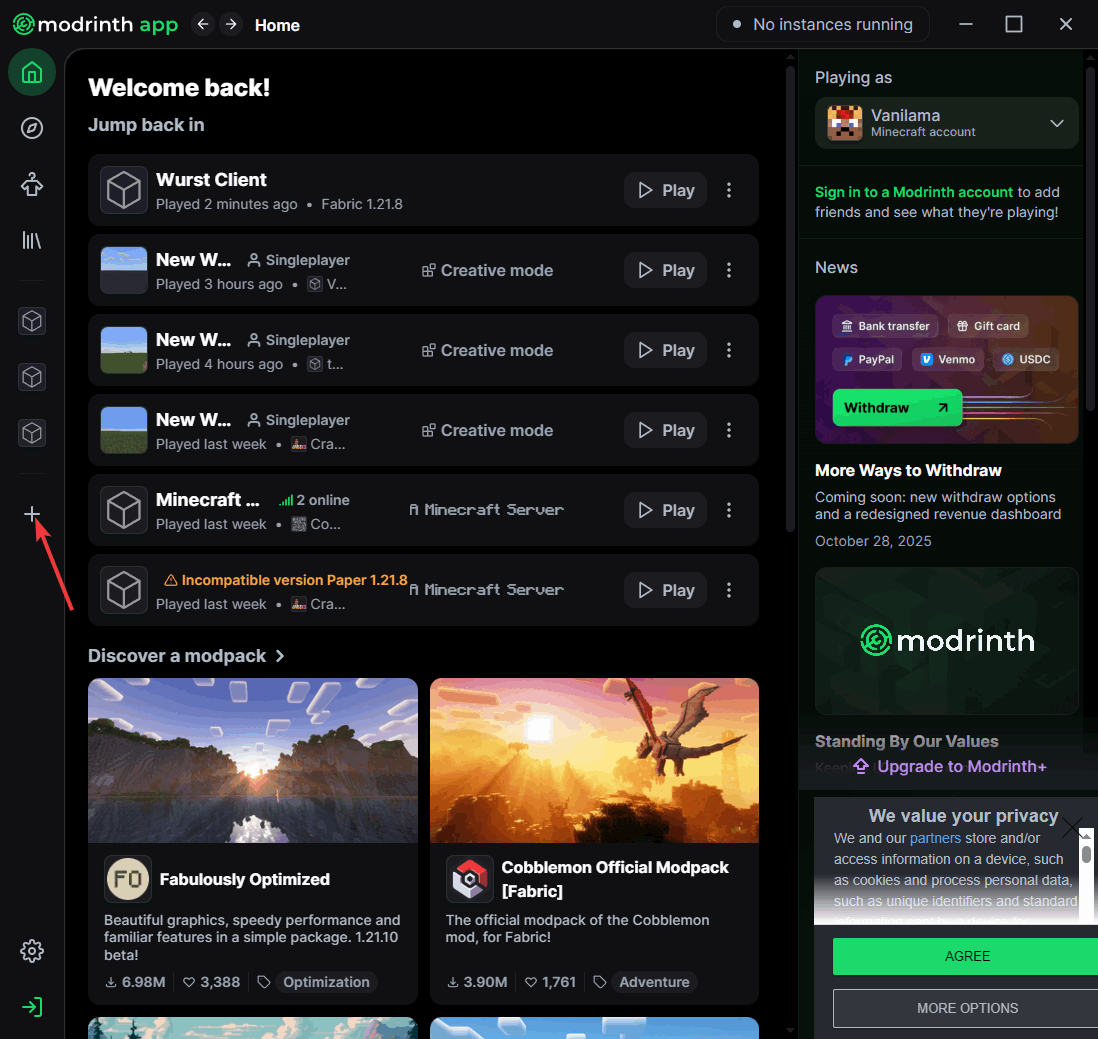
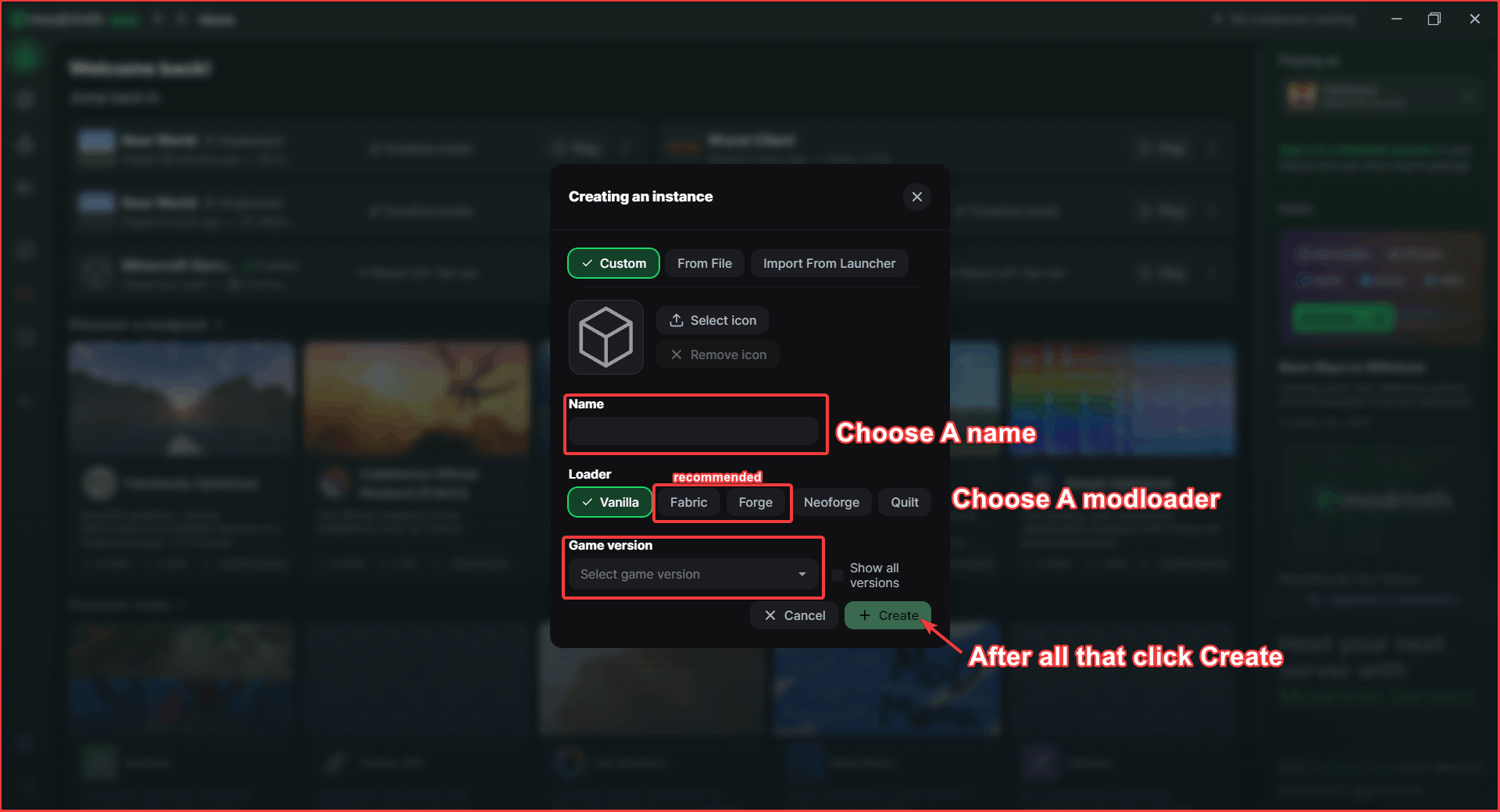
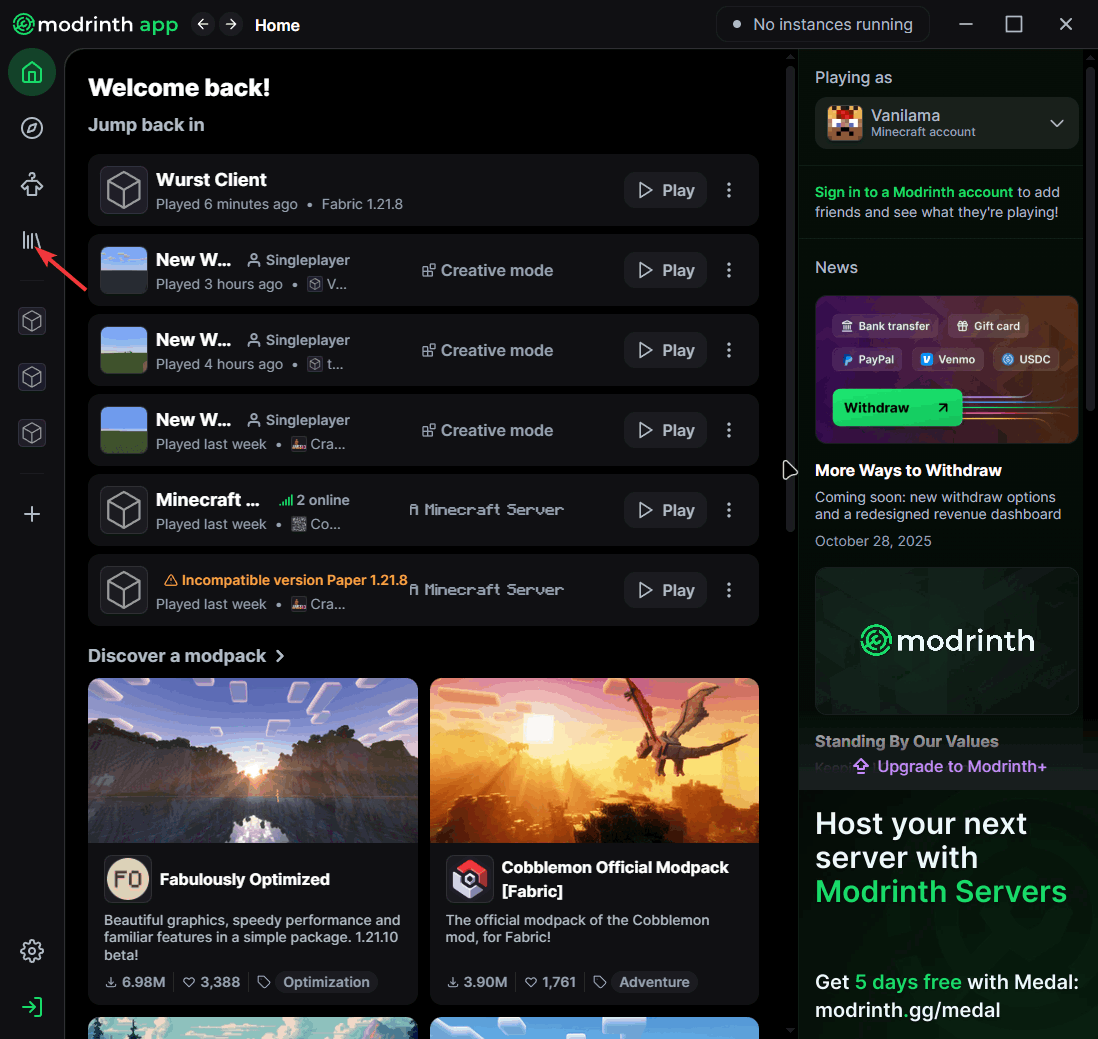
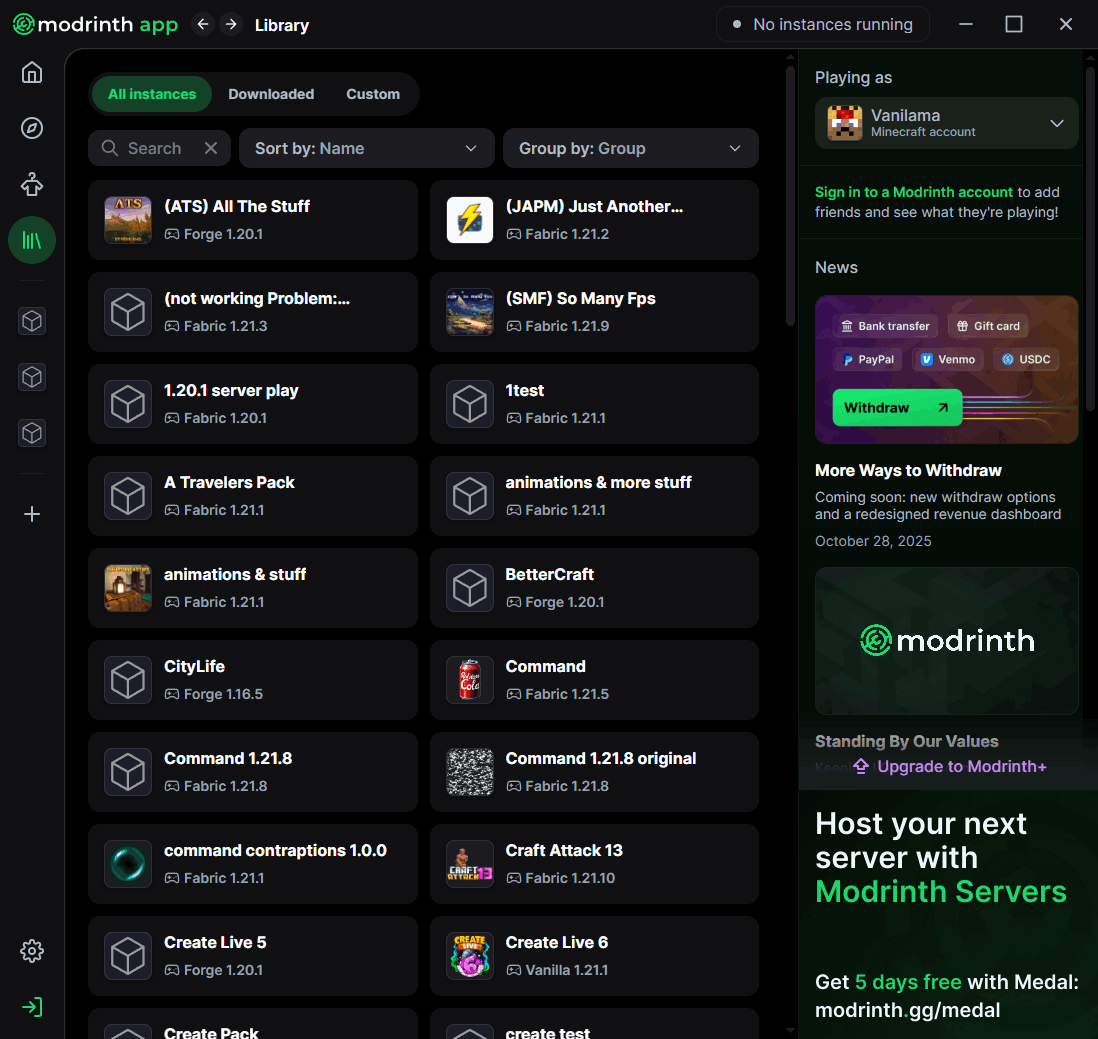
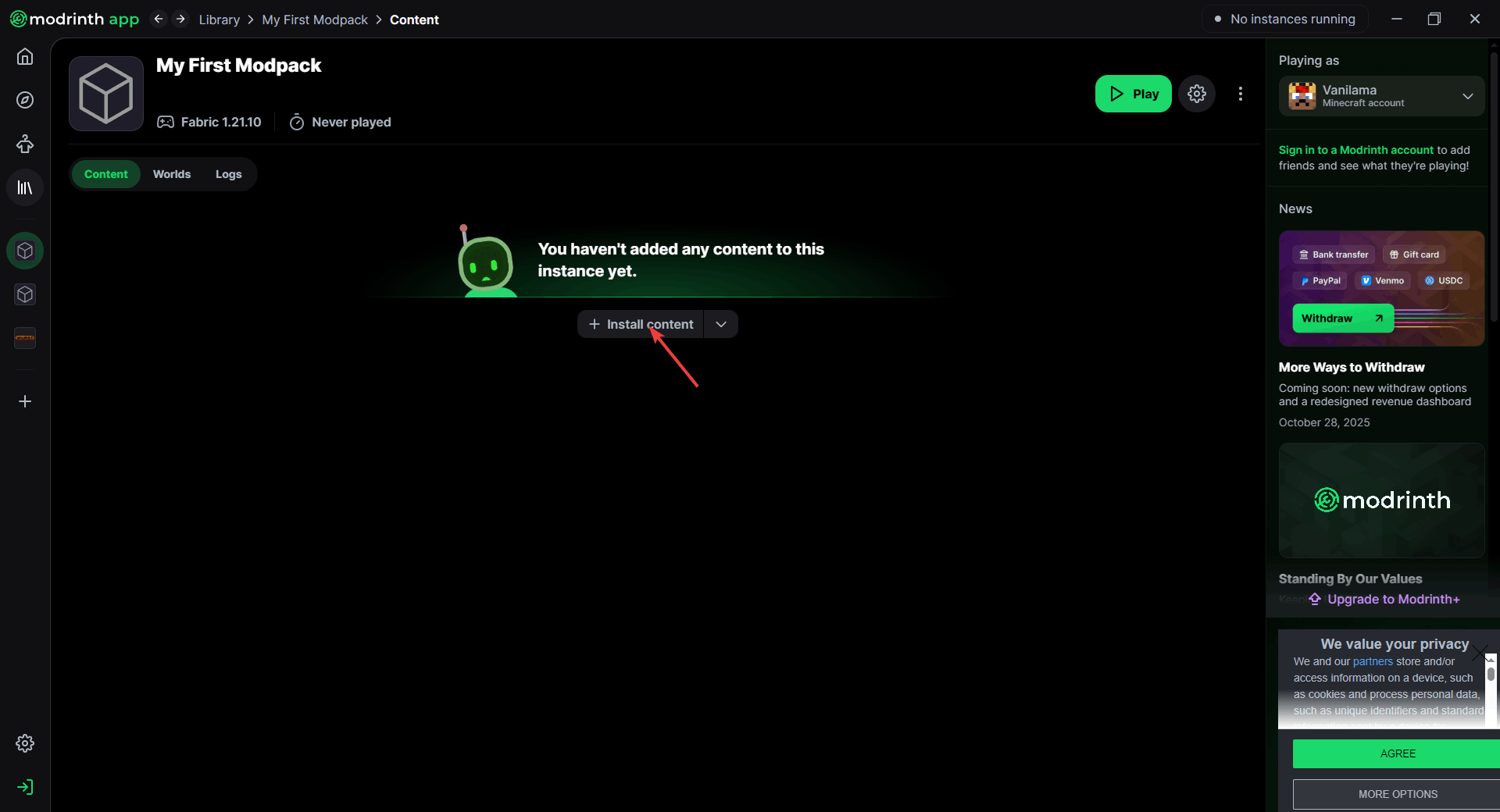
From the app's home screen, create a new modpack. You'll need to choose your Minecraft version and modloader (Fabric, Forge, or Quilt). Once created, navigate to your Library tab and click on your new modpack to open it. Don't click Play just yet — we need to add mods first!
Step 4: Add Mods and Shaders
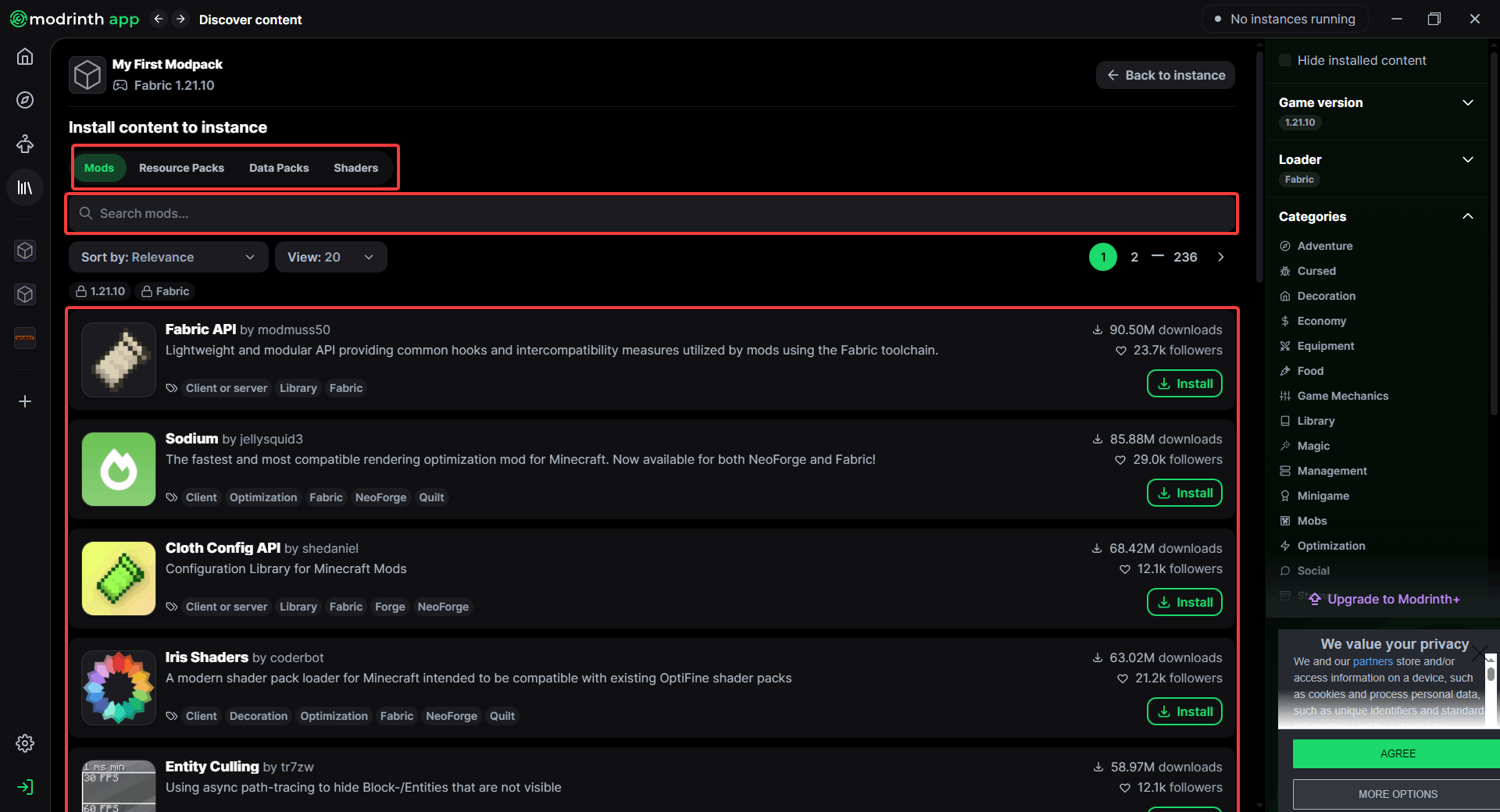
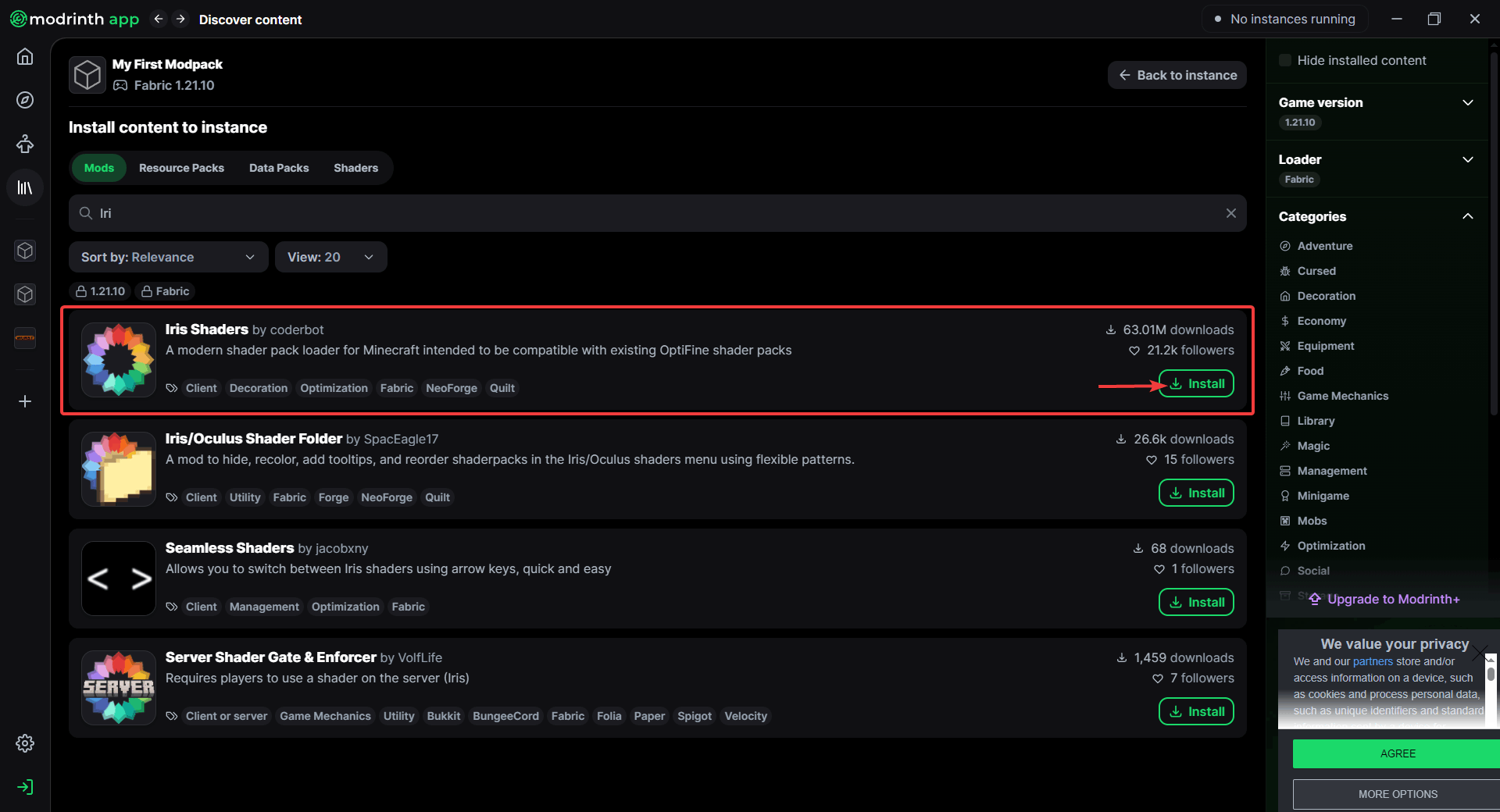
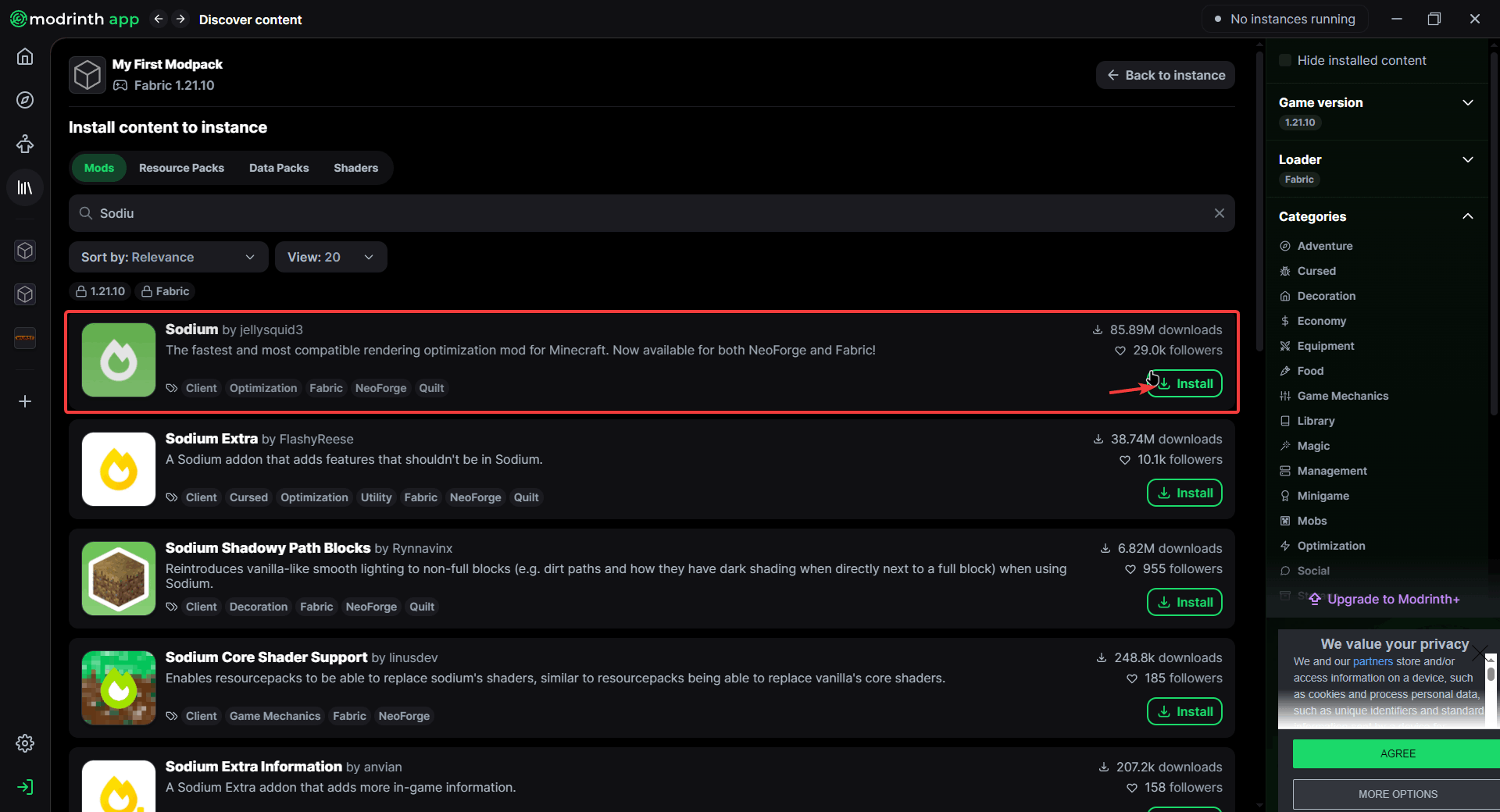
Click the "Install content" button and use the search bar to find mods you want. You can switch tabs to browse Resource Packs, Data Packs, or Shaders. For Fabric-based packs, we recommend installing Iris (shaders support) and Sodium (performance boost). For Forge packs, use Oculus and Embeddium instead. Modrinth automatically installs dependencies, but always double-check that mod versions match your Minecraft version and modloader.
Step 5: Launch and Enjoy!
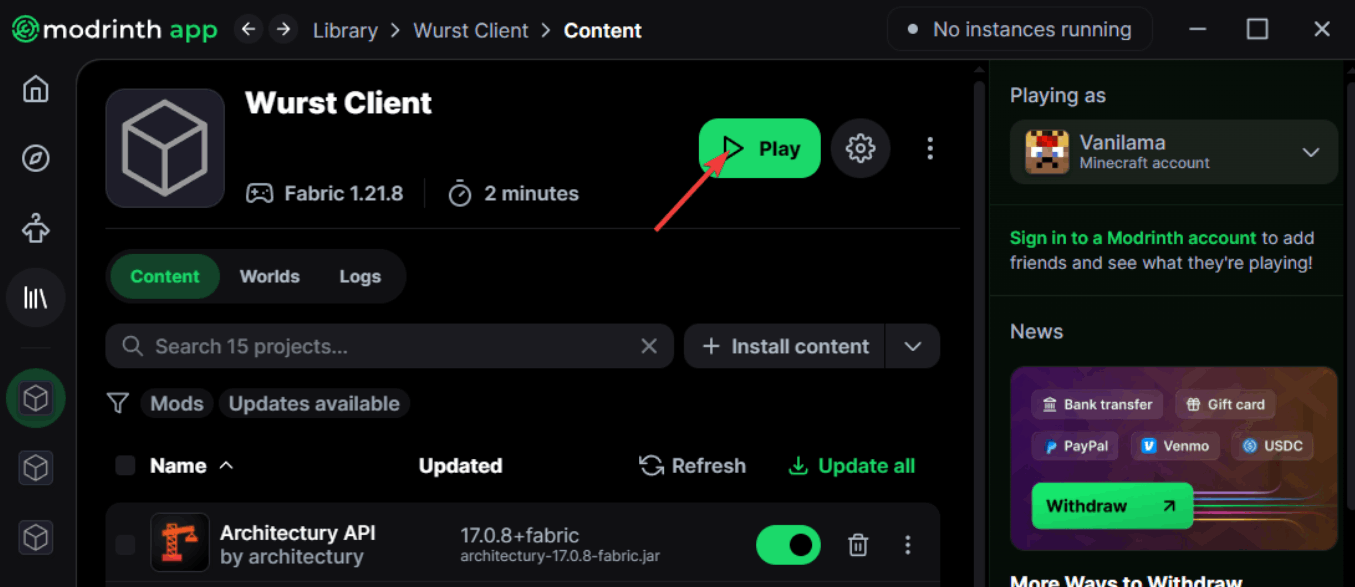
Hit the Play button to launch your custom modpack and start playing! You can return to the Modrinth app anytime to add or remove mods, adjust settings, or update content. If the game crashes on launch, try removing the most recently installed mod or checking for version conflicts between mods.
Frequently Asked Questions
What is Modrinth?
Modrinth is a modern, open-source platform and desktop app for browsing, installing, and managing Minecraft mods, resource packs, data packs, and shaders. It features automatic dependency handling, clean project pages, and excellent performance.
Is Modrinth safe?
Yes, Modrinth is safe to use. Projects are publicly visible and community-moderated, and the app installs files directly from official project pages. As with any modding platform, stick to trusted creators and always verify that mod versions match your Minecraft setup.
Modrinth vs CurseForge — which is better?
CurseForge has a massive legacy library of mods, while Modrinth is lightweight, open-source, and incredibly fast with a cleaner interface. Many mod creators publish on both platforms, so choose whichever launcher you prefer. Modrinth is generally recommended for newer players due to its user-friendly design.
Can I mix Fabric and Forge mods in one modpack?
No, you must choose one modloader per modpack (Fabric, Forge, or Quilt). Each loader has specific mods that only work with that loader. If you want to switch loaders, you'll need to create a new modpack and find compatible alternatives for your mods.
How do I install shaders?
First, install the shader loader mod: Iris (for Fabric/Quilt) or Oculus (for Forge) by going to Install content → Shaders. Then download your preferred shader pack, place the .zip file in your shaderpacks folder, and enable it in-game via Video Settings → Shaders.
How do I share or update my modpack?
Open your modpack in Modrinth and use the Export/Share feature to create a distributable profile file. For updates, go to the Installed tab, update your mods to newer versions, test the pack, then re-export and share the updated profile with your friends.
Pro tip: Combine your modpack with performance optimization mods like Sodium (Fabric) or Embeddium (Forge) for the best FPS. Check out our other guides for more Minecraft tips and tricks!